Examples
OmniGibson ships with many demo scripts highlighting its modularity and diverse feature set intended as a set of building blocks enabling your research. Let's try them out!
A quick word about macros
Why macros?
Macros enforce global behavior that is consistent within an individual python process but can differ between processes. This is useful because globally enabling all of OmniGibson's features can cause unnecessary slowdowns, and so configuring the macros for your specific use case can optimize performance.
macros define a globally available set of magic numbers or flags set throughout OmniGibson. These can either be directly set in omnigibson.macros.py, or can be programmatically modified at runtime via:
from omnigibson.macros import gm, macros

gm.<GLOBAL_MACRO> = <VALUE> # (1)!
macros.<OG_DIRECTORY>.<OG_MODULE>.<MODULE_MACRO> = <VALUE> # (2)!
gmrefers to the "global" macros -- i.e.: settings that generally impact the entireOmniGibsonstack. These are usually the only settings you may need to modify.macroscaptures all remaining macros defined throughoutOmniGibson's codebase -- these are often hardcoded default settings or magic numbers defined in a specific module. These can also be overridden, but we recommend inspecting the module first to understand how it is used.
Many of our examples set various macros settings at the beginning of the script, and is a good way to understand use cases for modifying them!
Environments
These examples showcase the full BEHAVIOR stack in use, and the types of environments immediately supported.
BEHAVIOR Task Demo
-
This demo is useful for...
- Understanding how to instantiate a BEHAVIOR task
- Understanding how a pre-defined configuration file is used
This demo instantiates one of our BEHAVIOR tasks (and optionally sampling object locations online) in a fully-populated scene and loads a
R1Prorobot. The robot executes random actions and the environment is reset periodically. -
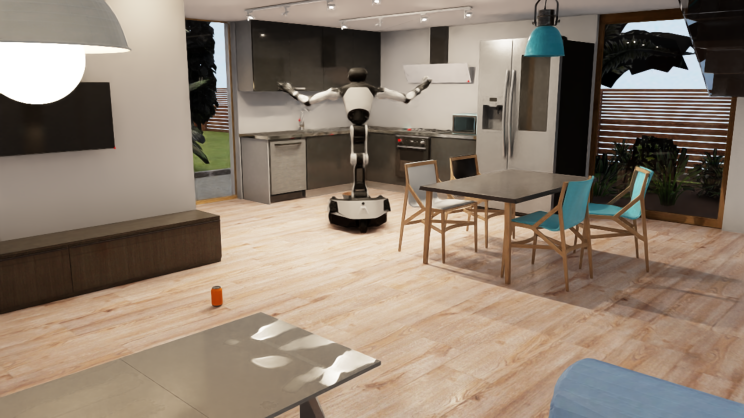
behavior_env_demo.py
Navigation Task Demo
-
This demo is useful for...
- Understanding how to instantiate a navigation task
- Understanding how a pre-defined configuration file is used
This demo instantiates one of our navigation tasks in a fully-populated scene and loads a
Turtlebotrobot. The robot executes random actions and the environment is reset periodically. -
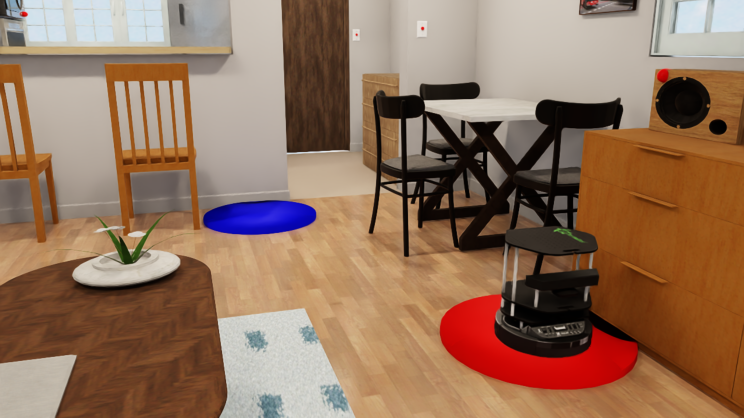
navigation_env_demo.py
Vector Environment Demo
-
This demo is useful for...
- Understanding how to instantiate multiple parallel environments using VectorEnvironment
- Benchmarking environment performance with parallel execution
- Learning how to configure batch simulation settings
This demo instantiates multiple parallel environments using
VectorEnvironmentwith 5 environments running simultaneously. Each environment loads aFrankaPandarobot and executes random actions independently. The demo measures and reports frames per second (FPS) and effective (aggregated) FPS across all environments. -
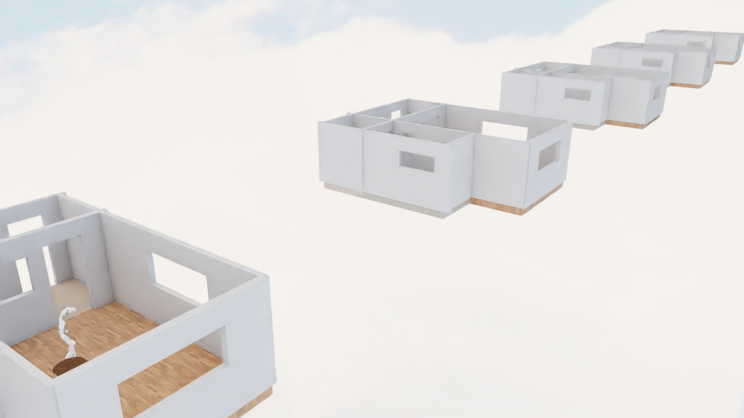
vector_env_demo.py
Learning
These examples showcase how OmniGibson can be used to train embodied AI agents.
Reinforcement Learning Demo
-
This demo is useful for...
- Understanding how to hook up
OmniGibsonto an external algorithm - Understanding how to train and evaluate a policy
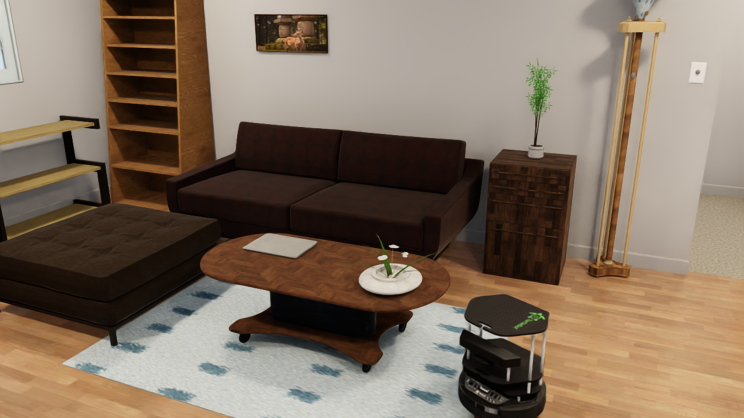
This demo loads a BEHAVIOR task with a
TurtleBotrobot, and trains / evaluates the agent using Stable Baseline3's PPO algorithm. - Understanding how to hook up
-
Required Dependencies
This demo requires stable-baselines for reinforcement learning. If not already installed, run:
navigation_policy_demo.py
1 2 3 4 5 6 7 8 9 10 11 12 13 14 15 16 17 18 19 20 21 22 23 24 25 26 27 28 29 30 31 32 33 34 35 36 37 38 39 40 41 42 43 44 45 46 47 48 49 50 51 52 53 54 55 56 57 58 59 60 61 62 63 64 65 66 67 68 69 70 71 72 73 74 75 76 77 78 79 80 81 82 83 84 85 86 87 88 89 90 91 92 93 94 95 96 97 98 99 100 101 102 103 104 105 106 107 108 109 110 111 112 113 114 115 116 117 118 119 120 121 122 123 124 125 126 127 128 129 130 131 132 133 134 135 136 137 138 139 140 141 142 143 144 145 146 147 148 149 150 151 152 153 154 155 156 157 158 159 160 161 162 163 164 165 166 167 168 169 170 171 172 173 174 175 176 177 178 179 180 181 182 183 184 185 | |
Scenes
These examples showcase how to leverage OmniGibson's large-scale, diverse scenes shipped with the BEHAVIOR dataset.
Scene Selector Demo
-
This demo is useful for...
- Understanding how to load a scene into
OmniGibson - Accessing all BEHAVIOR dataset scenes
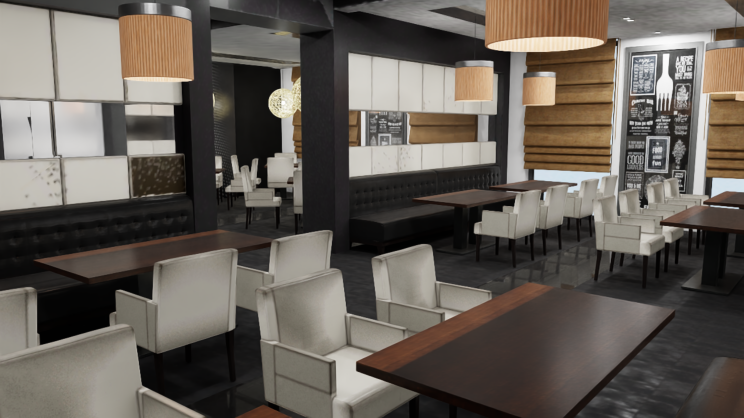
This demo lets you choose a scene from the BEHAVIOR dataset and load it.
- Understanding how to load a scene into
-
scene_selector.py
Scene Tour Demo
-
This demo is useful for...
- Understanding how to load a scene into
OmniGibson - Understanding how to generate a trajectory from a set of waypoints
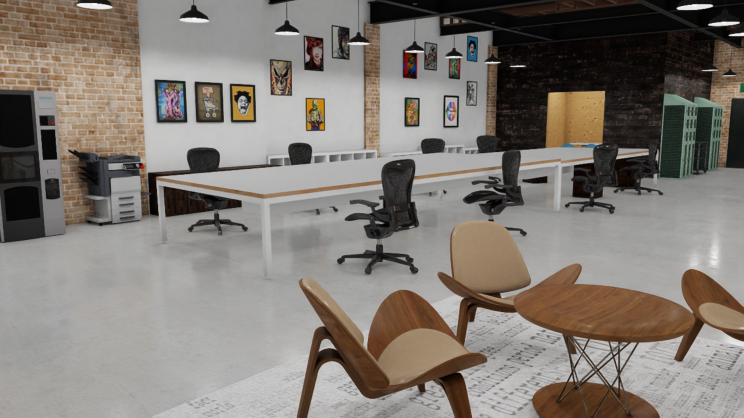
This demo lets you choose a scene from the BEHAVIOR dataset. It allows you to move the camera using the keyboard, select waypoints, and then programmatically generates a video trajectory from the selected waypoints
- Understanding how to load a scene into
-
scene_tour_demo.py
1 2 3 4 5 6 7 8 9 10 11 12 13 14 15 16 17 18 19 20 21 22 23 24 25 26 27 28 29 30 31 32 33 34 35 36 37 38 39 40 41 42 43 44 45 46 47 48 49 50 51 52 53 54 55 56 57 58 59 60 61 62 63 64 65 66 67 68 69 70 71 72 73 74 75 76 77 78 79 80 81 82 83 84 85 86 87 88 89 90 91 92 93 94 95 96 97 98 99 100 101 102 103 104 105 106 107 108 109 110 111 112 113 114 115 | |
Traversability Map Demo
-
This demo is useful for...
- Understanding how to leverage traversability map information from BEHAVIOR dataset scenes
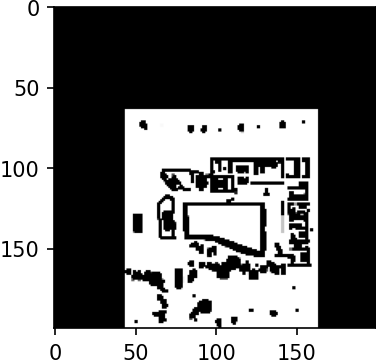
This demo lets you choose a scene from the BEHAVIOR dataset, and generates its corresponding traversability map.
-
traversability_map_example.py
Objects
These examples showcase how to leverage objects in OmniGibson.
Load Object Demo
-
This demo is useful for...
- Understanding how to load an object into
OmniGibson - Accessing all BEHAVIOR dataset asset categories and models
This demo lets you choose a specific object from the BEHAVIOR dataset, and loads the requested object into an environment.
- Understanding how to load an object into
-
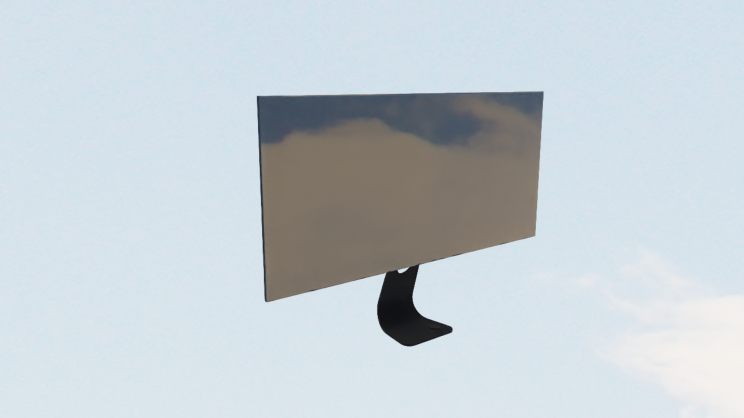
load_object_selector.py
Object Visualizer Demo
-
This demo is useful for...
- Viewing objects' textures as rendered in
OmniGibson - Viewing articulated objects' range of motion
- Understanding how to reference object instances from the environment
- Understanding how to set object poses and joint states
This demo lets you choose a specific object from the BEHAVIOR dataset, and rotates the object in-place. If the object is articulated, it additionally moves its joints through its full range of motion.
- Viewing objects' textures as rendered in
-
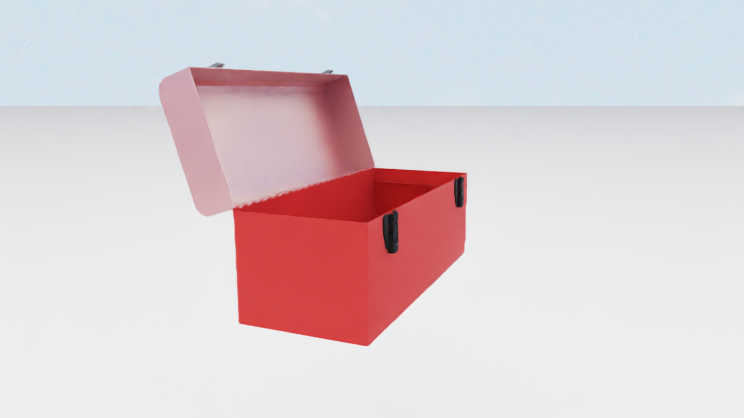
visualize_object.py
1 2 3 4 5 6 7 8 9 10 11 12 13 14 15 16 17 18 19 20 21 22 23 24 25 26 27 28 29 30 31 32 33 34 35 36 37 38 39 40 41 42 43 44 45 46 47 48 49 50 51 52 53 54 55 56 57 58 59 60 61 62 63 64 65 66 67 68 69 70 71 72 73 74 75 76 77 78 79 80 81 82 83 84 85 86 87 88 89 90 91 92 93 94 95 96 97 98 99 100 101 102 103 104 105 106 107 108 109 110 111 112 113 114 115 116 117 118 119 120 121 122 123 124 125 126 127 128 129 130 131 132 133 134 135 136 137 138 139 140 141 | |
Highlight Object
-
This demo is useful for...
- Understanding how to highlight individual objects within a cluttered scene
- Understanding how to access groups of objects from the environment
This demo loads the Rs_int scene and highlights windows on/off repeatedly.
-
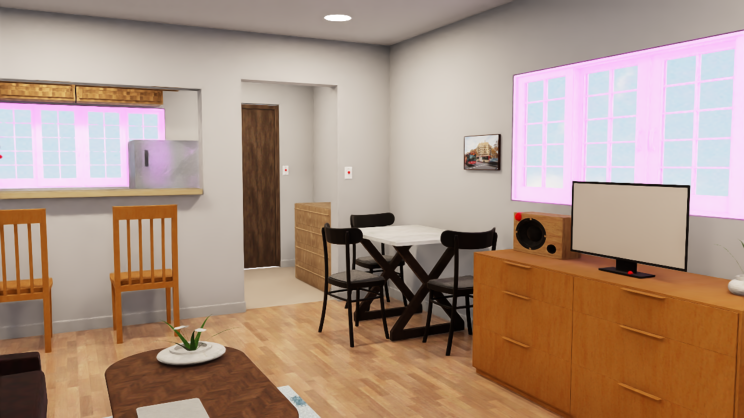
highlight_objects.py
Draw Object Bounding Box Demo
-
This demo is useful for...
- Understanding how to access observations from a
GymObservableobject - Understanding how to access objects' bounding box information
- Understanding how to dynamically modify vision modalities
This demo loads a door object and banana object, and partially obscures the banana with the door. It generates both "loose" and "tight" bounding boxes (where the latter respects occlusions) for both objects, and dumps them to an image on disk.
- Understanding how to access observations from a
-

*[GymObservable]: Environment, all sensors extending from BaseSensor, and all objects extending from BaseObject (which includes all robots extending from BaseRobot!) are GymObservable objects!
draw_bounding_box.py
Object States
These examples showcase OmniGibson's powerful object states functionality, which captures both individual and relational kinematic and non-kinematic states.
Slicing Demo
-
This demo is useful for...
- Understanding how slicing works in
OmniGibson - Understanding how to access individual objects once the environment is created
This demo spawns an apple on a table with a knife above it, and lets the knife fall to "cut" the apple in half.
- Understanding how slicing works in
-
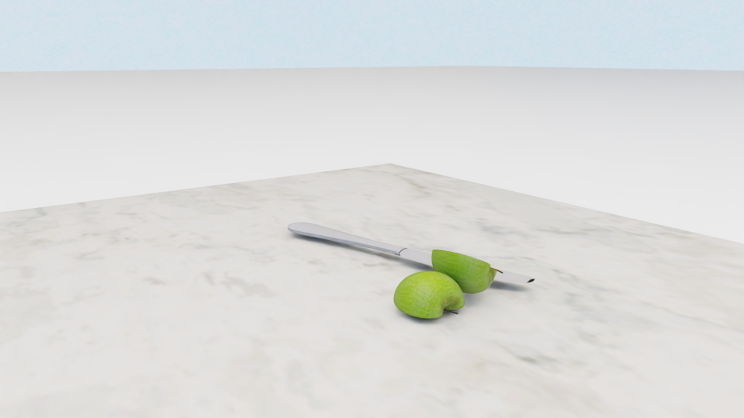
slicing_demo.py
1 2 3 4 5 6 7 8 9 10 11 12 13 14 15 16 17 18 19 20 21 22 23 24 25 26 27 28 29 30 31 32 33 34 35 36 37 38 39 40 41 42 43 44 45 46 47 48 49 50 51 52 53 54 55 56 57 58 59 60 61 62 63 64 65 66 67 68 69 70 71 72 73 74 75 76 77 78 79 80 81 82 83 84 85 86 87 88 89 90 91 92 93 94 95 96 97 98 99 100 101 102 103 104 105 106 107 108 109 110 | |
Dicing Demo
-
This demo is useful for...
- Understanding how to leverage the
Dicingstate - Understanding how to enable objects to be
diceable
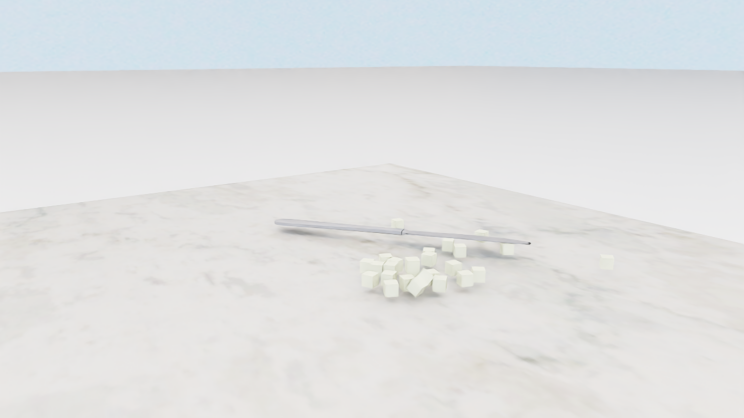
This demo loads an apple and a knife, and showcases how apple can be diced into smaller chunks with the knife.
- Understanding how to leverage the
-
dicing_demo.py
1 2 3 4 5 6 7 8 9 10 11 12 13 14 15 16 17 18 19 20 21 22 23 24 25 26 27 28 29 30 31 32 33 34 35 36 37 38 39 40 41 42 43 44 45 46 47 48 49 50 51 52 53 54 55 56 57 58 59 60 61 62 63 64 65 66 67 68 69 70 71 72 73 74 75 76 77 78 79 80 81 82 83 84 85 86 87 88 89 90 91 92 93 94 95 96 97 98 99 100 101 102 103 104 105 106 107 108 109 110 111 112 113 | |
Folded and Unfolded Demo [WIP]
-
This demo is useful for...
- Understanding how to load a softbody (cloth) version of a BEHAVIOR dataset object
- Understanding how to enable cloth objects to be
foldable - Understanding the current heuristics used for gauging a cloth's "foldness"
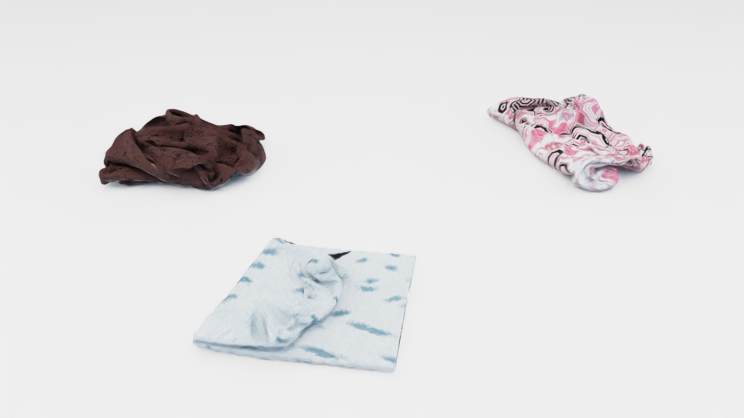
This demo loads in three different cloth objects, and allows you to manipulate them while printing out their
Foldedstate status in real-time. Try manipulating the object by holding downShiftand thenLeft-click + Drag! -
folded_unfolded_state_demo.py
1 2 3 4 5 6 7 8 9 10 11 12 13 14 15 16 17 18 19 20 21 22 23 24 25 26 27 28 29 30 31 32 33 34 35 36 37 38 39 40 41 42 43 44 45 46 47 48 49 50 51 52 53 54 55 56 57 58 59 60 61 62 63 64 65 66 67 68 69 70 71 72 73 74 75 76 77 78 79 80 81 82 83 84 85 86 87 88 89 90 91 92 93 94 95 96 97 98 99 100 101 102 103 104 105 106 107 108 109 110 111 112 113 114 115 116 117 118 119 120 121 122 123 124 125 126 127 128 129 130 131 132 133 134 135 136 137 138 139 140 141 142 143 144 145 146 147 148 149 150 151 152 153 154 155 156 157 158 159 160 161 162 163 164 165 166 167 | |
Overlaid Demo
-
This demo is useful for...
- Understanding how cloth objects can be overlaid on rigid objects
- Understanding current heuristics used for gauging a cloth's "overlaid" status
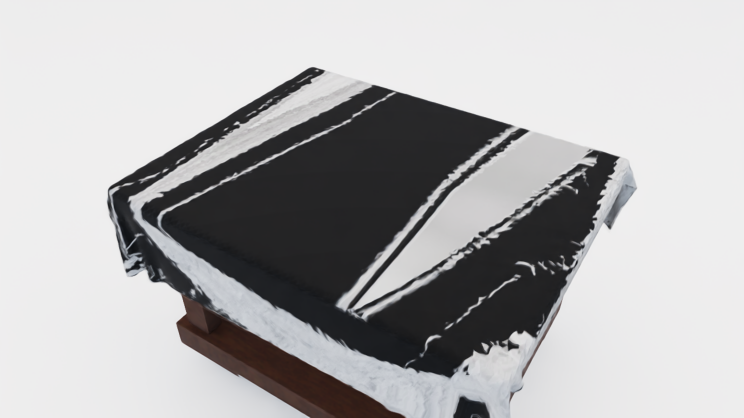
This demo loads in a carpet on top of a table. The demo allows you to manipulate the carpet while printing out their
Overlaidstate status in real-time. Try manipulating the object by holding downShiftand thenLeft-click + Drag! -
overlaid_demo.py
Heat Source or Sink Demo [WIP]
-
This demo is useful for...
- Understanding how a heat source (or sink) is visualized in
OmniGibson - Understanding how dynamic fire visuals are generated in real-time
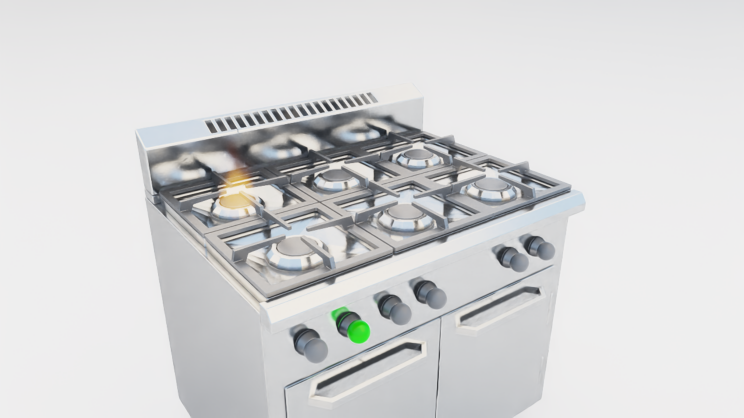
This demo loads in a stove and toggles its
HeatSourceon and off, showcasing the dynamic fire visuals available inOmniGibson. - Understanding how a heat source (or sink) is visualized in
-
heat_source_or_sink_demo.py
Temperature Demo
-
This demo is useful for...
- Understanding how to dynamically sample kinematic states for BEHAVIOR dataset objects
- Understanding how temperature changes are propagated to individual objects from individual heat sources or sinks
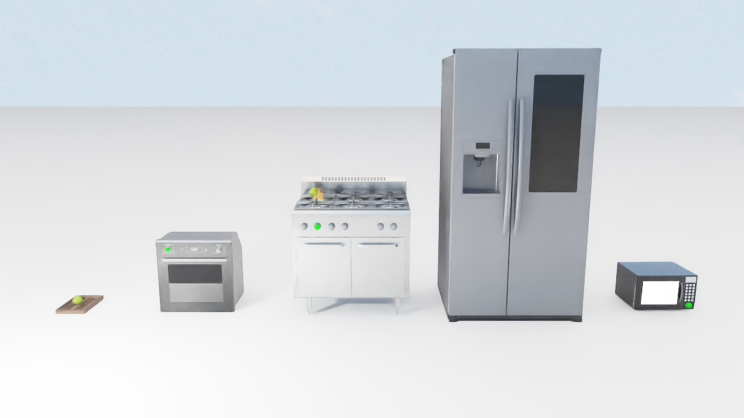
This demo loads in various heat sources and sinks, and places an apple within close proximity to each of them. As the environment steps, each apple's temperature is printed in real-time, showcasing
OmniGibson's rudimentary temperature dynamics. -
temperature_demo.py
1 2 3 4 5 6 7 8 9 10 11 12 13 14 15 16 17 18 19 20 21 22 23 24 25 26 27 28 29 30 31 32 33 34 35 36 37 38 39 40 41 42 43 44 45 46 47 48 49 50 51 52 53 54 55 56 57 58 59 60 61 62 63 64 65 66 67 68 69 70 71 72 73 74 75 76 77 78 79 80 81 82 83 84 85 86 87 88 89 90 91 92 93 94 95 96 97 98 99 100 101 102 103 104 105 106 107 108 109 110 111 112 113 114 115 116 117 118 119 120 121 122 123 124 125 126 127 128 129 130 131 132 133 134 135 136 137 138 139 140 141 142 143 144 145 146 147 148 149 150 151 152 153 154 155 156 157 158 159 160 161 162 163 164 165 166 167 168 169 170 171 172 173 174 175 176 177 178 179 180 181 | |
Heated Demo
-
This demo is useful for...
- Understanding how temperature modifications can cause objects' visual changes
- Understanding how dynamic steam visuals are generated in real-time
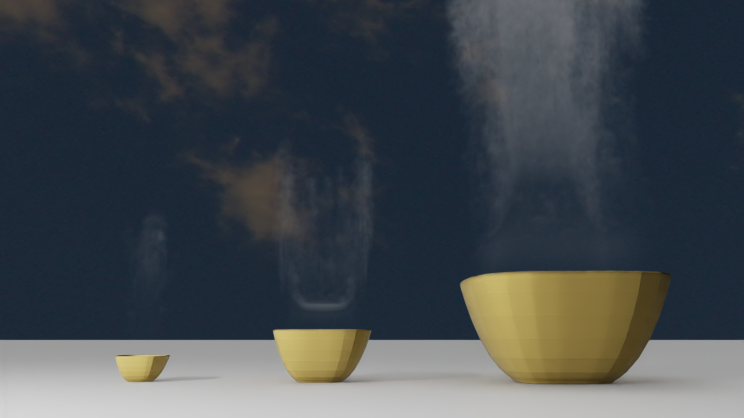
This demo loads in three bowls, and immediately sets their temperatures past their
Heatedthreshold. Steam is generated in real-time from these objects, and then disappears once the temperature of the objects drops below theirHeatedthreshold. -
heated_state_demo.py
1 2 3 4 5 6 7 8 9 10 11 12 13 14 15 16 17 18 19 20 21 22 23 24 25 26 27 28 29 30 31 32 33 34 35 36 37 38 39 40 41 42 43 44 45 46 47 48 49 50 51 52 53 54 55 56 57 58 59 60 61 62 63 64 65 66 67 68 69 70 71 72 73 74 75 76 77 78 79 80 81 82 83 84 85 86 87 88 89 90 91 92 93 94 95 96 97 98 99 100 101 102 103 104 105 106 107 | |
Onfire Demo
-
This demo is useful for...
- Understanding how changing onfire state can cause objects' visual changes
- Understanding how onfire can be triggered by nearby onfire objects
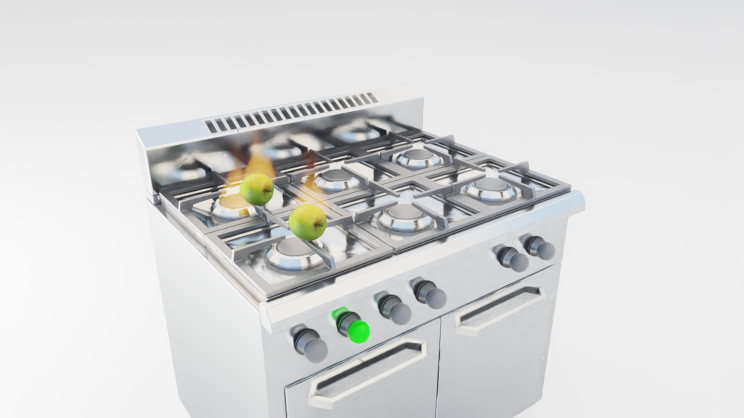
This demo loads in a stove (toggled on) and two apples. The first apple will be ignited by the stove first, then the second apple will be ignited by the first apple.
-
onfire_demo.py
1 2 3 4 5 6 7 8 9 10 11 12 13 14 15 16 17 18 19 20 21 22 23 24 25 26 27 28 29 30 31 32 33 34 35 36 37 38 39 40 41 42 43 44 45 46 47 48 49 50 51 52 53 54 55 56 57 58 59 60 61 62 63 64 65 66 67 68 69 70 71 72 73 74 75 76 77 78 79 80 81 82 83 84 85 86 87 88 89 90 91 92 93 94 95 96 97 98 99 100 101 102 103 104 105 106 107 108 109 110 111 112 113 | |
Particle Applier and Remover Demo
-
This demo is useful for...
- Understanding how a
ParticleRemoverorParticleApplierobject can be generated - Understanding how particles can be dynamically generated on objects
- Understanding different methods for applying and removing particles via the
ParticleRemoverorParticleApplierobject
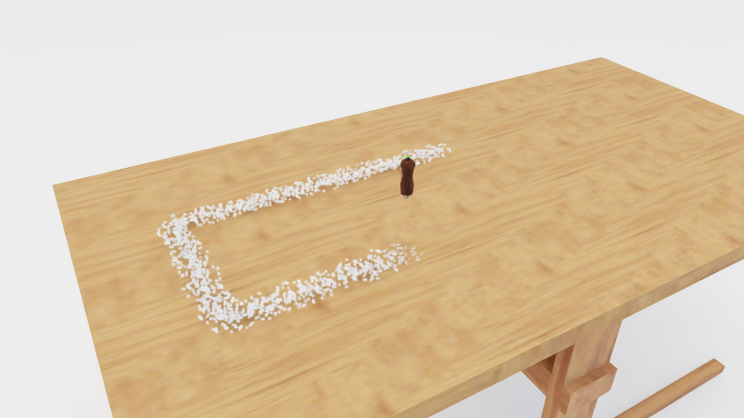
This demo loads in a washtowel and table and lets you choose the ability configuration to enable the washtowel with. The washtowel will then proceed to either remove and generate particles dynamically on the table while moving.
- Understanding how a
-
particle_applier_remover_demo.py
1 2 3 4 5 6 7 8 9 10 11 12 13 14 15 16 17 18 19 20 21 22 23 24 25 26 27 28 29 30 31 32 33 34 35 36 37 38 39 40 41 42 43 44 45 46 47 48 49 50 51 52 53 54 55 56 57 58 59 60 61 62 63 64 65 66 67 68 69 70 71 72 73 74 75 76 77 78 79 80 81 82 83 84 85 86 87 88 89 90 91 92 93 94 95 96 97 98 99 100 101 102 103 104 105 106 107 108 109 110 111 112 113 114 115 116 117 118 119 120 121 122 123 124 125 126 127 128 129 130 131 132 133 134 135 136 137 138 139 140 141 142 143 144 145 146 147 148 149 150 151 152 153 154 155 156 157 158 159 160 161 162 163 164 165 166 167 168 169 170 171 172 173 174 175 176 177 178 179 180 181 182 183 184 185 186 187 188 189 190 191 192 193 194 195 | |
Particle Source and Sink Demo [WIP]
-
This demo is useful for...
- Understanding how a
ParticleSourceorParticleSinkobject can be generated - Understanding how particles can be dynamically generated and destroyed via such objects
This demo loads in a sink, which is enabled with both the ParticleSource and ParticleSink states. The sink's particle source is located at the faucet spout and spawns a continuous stream of water particles, which is then destroyed ("sunk") by the sink's particle sink located at the drain.
- Understanding how a
-
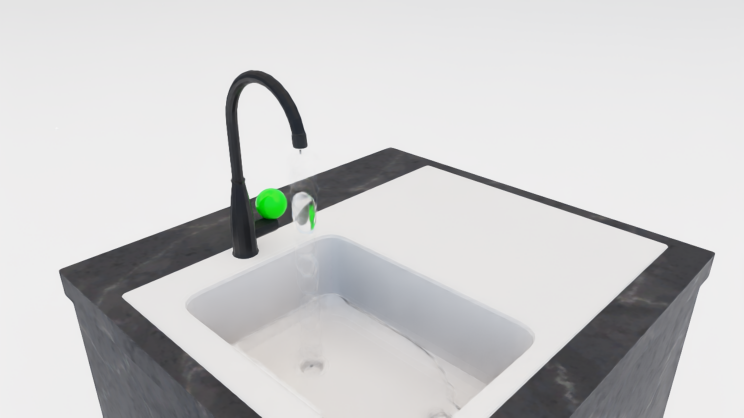
Difference between ParticleApplier/Removers and ParticleSource/Sinks
The key difference between ParticleApplier/Removers and ParticleSource/Sinks is that Applier/Removers
requires contact (if using ParticleProjectionMethod.ADJACENCY) or overlap
(if using ParticleProjectionMethod.PROJECTION) in order to spawn / remove particles, and generally only spawn
particles at the contact points. ParticleSource/Sinks are special cases of ParticleApplier/Removers that
always use ParticleProjectionMethod.PROJECTION and always spawn / remove particles within their projection volume,
irregardless of overlap with other objects.
particle_source_sink_demo.py
1 2 3 4 5 6 7 8 9 10 11 12 13 14 15 16 17 18 19 20 21 22 23 24 25 26 27 28 29 30 31 32 33 34 35 36 37 38 39 40 41 42 43 44 45 46 47 48 49 50 51 52 53 54 55 56 57 58 59 60 61 62 63 64 65 66 67 68 69 70 71 72 73 74 75 76 77 78 79 80 81 82 83 84 85 86 87 88 89 90 91 92 93 94 95 96 97 98 99 100 101 102 103 104 105 106 107 108 109 110 111 112 113 114 115 116 | |
Kinematics Demo
-
This demo is useful for...
- Understanding how to dynamically sample kinematic states for BEHAVIOR dataset objects
- Understanding how to import additional objects after the environment is created
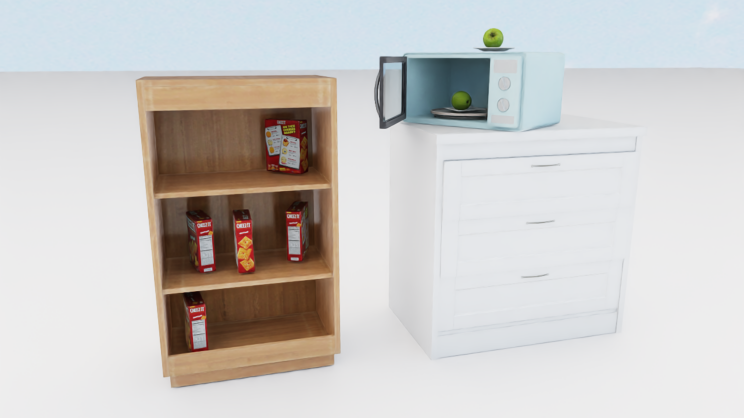
This demo procedurally generates a mini populated scene, spawning in a cabinet and placing boxes in its shelves, and then generating a microwave on a cabinet with a plate and apples sampled both inside and on top of it.
-
sample_kinematics_demo.py
1 2 3 4 5 6 7 8 9 10 11 12 13 14 15 16 17 18 19 20 21 22 23 24 25 26 27 28 29 30 31 32 33 34 35 36 37 38 39 40 41 42 43 44 45 46 47 48 49 50 51 52 53 54 55 56 57 58 59 60 61 62 63 64 65 66 67 68 69 70 71 72 73 74 75 76 77 78 79 80 81 82 83 84 85 86 87 88 89 90 91 92 93 94 95 96 97 98 99 100 101 102 103 104 105 106 107 108 109 110 111 112 113 114 115 116 117 118 119 120 121 122 123 124 125 126 127 128 129 130 131 132 133 134 135 136 137 138 139 140 141 142 143 144 145 146 147 148 149 150 151 152 153 154 155 156 157 158 159 160 161 162 163 164 165 166 167 168 169 170 171 172 173 174 175 176 177 178 179 180 181 182 183 184 185 186 187 188 189 190 191 192 193 | |
Attachment Demo
-
This demo is useful for...
- Understanding how to leverage the
Attachedstate - Understanding how to enable objects to be
attachable
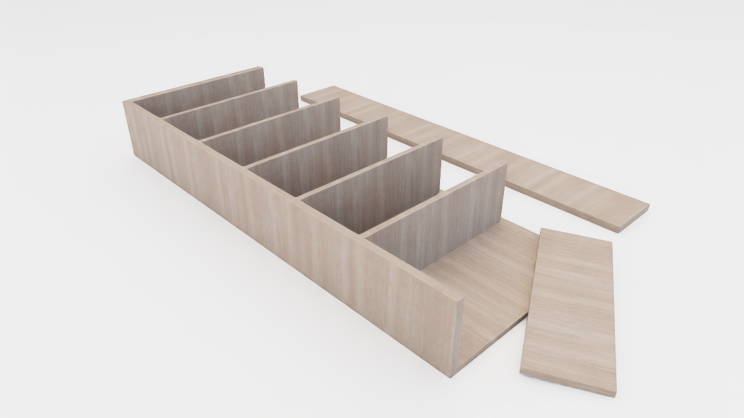
This demo loads an assembled shelf, and showcases how it can be manipulated to attach and detach parts.
- Understanding how to leverage the
-
attachment_demo.py
Object Texture Demo
-
This demo is useful for...
- Understanding how different object states can result in texture changes
- Understanding how to enable objects with texture-changing states
- Understanding how to dynamically modify object states
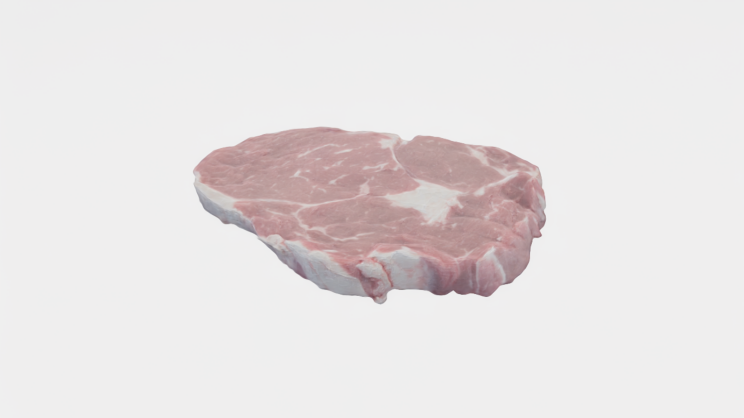
This demo loads in a single object, and then dynamically modifies its state so that its texture changes with each modification.
-
object_state_texture_demo.py
1 2 3 4 5 6 7 8 9 10 11 12 13 14 15 16 17 18 19 20 21 22 23 24 25 26 27 28 29 30 31 32 33 34 35 36 37 38 39 40 41 42 43 44 45 46 47 48 49 50 51 52 53 54 55 56 57 58 59 60 61 62 63 64 65 66 67 68 69 70 71 72 73 74 75 76 77 78 79 80 81 82 83 84 85 86 87 88 89 90 91 92 93 94 95 96 97 98 99 100 101 102 103 104 105 106 107 108 109 110 111 112 113 114 115 116 117 118 119 120 121 122 123 124 125 126 127 128 129 130 131 132 133 134 135 136 137 138 139 140 141 142 143 144 145 146 147 148 | |
Robots
These examples showcase how to interact and leverage robot objects in OmniGibson.
Robot Visualizer Demo
-
This demo is useful for...
- Understanding how to load a robot into
OmniGibsonafter an environment is created - Accessing all
OmniGibsonrobot models - Viewing robots' low-level joint motion
This demo iterates over all robots in
OmniGibson, loading each one into an empty scene and randomly moving its joints for a brief amount of time. - Understanding how to load a robot into
-
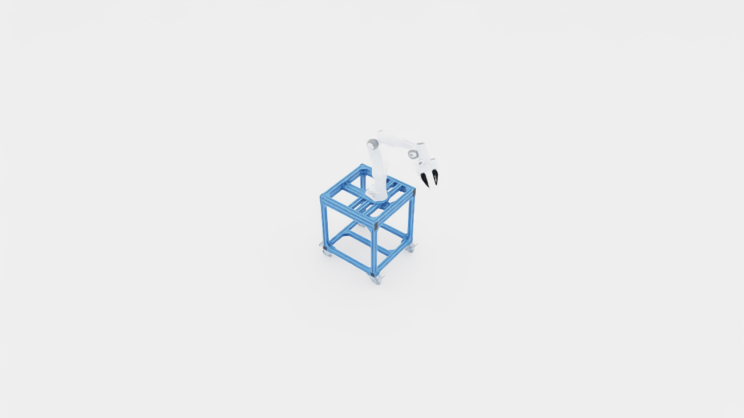
all_robots_visualizer.py
Robot Control Demo
-
This demo is useful for...
- Understanding how different controllers can be used to control robots
- Understanding how to teleoperate a robot through external commands
This demo lets you choose a robot and the set of controllers to control the robot, and then lets you teleoperate the robot using your keyboard.
-
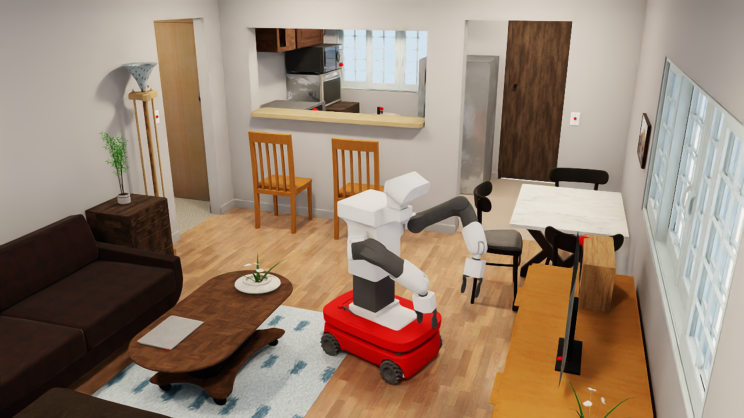
robot_control_example.py
1 2 3 4 5 6 7 8 9 10 11 12 13 14 15 16 17 18 19 20 21 22 23 24 25 26 27 28 29 30 31 32 33 34 35 36 37 38 39 40 41 42 43 44 45 46 47 48 49 50 51 52 53 54 55 56 57 58 59 60 61 62 63 64 65 66 67 68 69 70 71 72 73 74 75 76 77 78 79 80 81 82 83 84 85 86 87 88 89 90 91 92 93 94 95 96 97 98 99 100 101 102 103 104 105 106 107 108 109 110 111 112 113 114 115 116 117 118 119 120 121 122 123 124 125 126 127 128 129 130 131 132 133 134 135 136 137 138 139 140 141 142 143 144 145 146 147 148 149 150 151 152 153 154 155 156 157 158 159 160 161 162 163 164 165 166 167 168 169 170 171 172 173 174 175 176 177 178 179 180 181 182 183 184 185 186 187 188 189 | |
Robot Grasping Demo
-
This demo is useful for...
- Understanding the difference between
physicalandstickygrasping - Understanding how to teleoperate a robot through external commands
This demo lets you choose a grasping mode and then loads a
Fetchrobot and a cube on a table. You can then teleoperate the robot to grasp the cube, observing the difference is grasping behavior based on the grasping mode chosen. Here,physicalmeans natural friction is required to hold objects, whilestickymeans that objects are constrained to the robot's gripper once contact is made. - Understanding the difference between
-
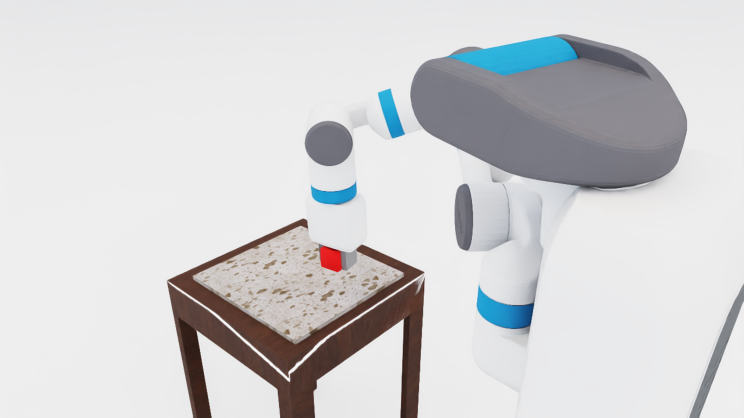
grasping_mode_example.py
1 2 3 4 5 6 7 8 9 10 11 12 13 14 15 16 17 18 19 20 21 22 23 24 25 26 27 28 29 30 31 32 33 34 35 36 37 38 39 40 41 42 43 44 45 46 47 48 49 50 51 52 53 54 55 56 57 58 59 60 61 62 63 64 65 66 67 68 69 70 71 72 73 74 75 76 77 78 79 80 81 82 83 84 85 86 87 88 89 90 91 92 93 94 95 96 97 98 99 100 101 102 103 104 105 106 107 108 109 110 111 112 113 114 115 116 117 118 119 120 121 122 123 124 125 126 127 | |
Simulator
These examples showcase useful functionality from OmniGibson's monolithic Simulator object.
What's the difference between Environment and Simulator?
The Simulator class is a lower-level object that:
- handles importing scenes and objects into the actual simulation
- directly interfaces with the underlying physics engine
The Environment class thinly wraps the Simulator's core functionality, by:
- providing convenience functions for automatically importing a predefined scene, object(s), and robot(s) (via the
cfgargument), as well as atask - providing a OpenAI Gym interface for stepping through the simulation
While most of the core functionality in Environment (as well as more fine-grained physics control) can be replicated via direct calls to Simulator (og.sim), it requires deeper understanding of OmniGibson's infrastructure and is not recommended for new users.
State Saving and Loading Demo
-
This demo is useful for...
- Understanding how to interact with objects using the mouse
- Understanding how to save the active simulator state to a file
- Understanding how to restore the simulator state from a given file
This demo loads a stripped-down scene with the
Turtlebotrobot, and lets you interact with objects to modify the scene. The state is then saved, written to a.jsonfile, and then restored in the simulation. -